
Connect Claude AI to WhatsApp: MCP Server Setup Guide 2026
Connect Claude AI to WhatsApp Business in minutes using the Model Context Protocol (MCP). Step-by-step guide to let your AI agent read, reply, and manage conversations — with human handoff when it matters.
What if your AI could read WhatsApp messages, send replies, qualify leads, and escalate complex conversations to a human—all without anyone switching apps?
That’s not a future feature. It’s possible today with the Model Context Protocol (MCP) and EZContact’s WhatsApp MCP server.
In this guide, you’ll learn exactly how MCP works, why it’s the bridge between Claude AI and WhatsApp Business, and how to set it up in minutes. (New to the topic? Start with our overview of whether Claude can connect to WhatsApp and what it unlocks for your business.)
EZContact makes this simple: one prompt configures your AI agent, and the human in your team can take over any conversation at any time. Try it free →
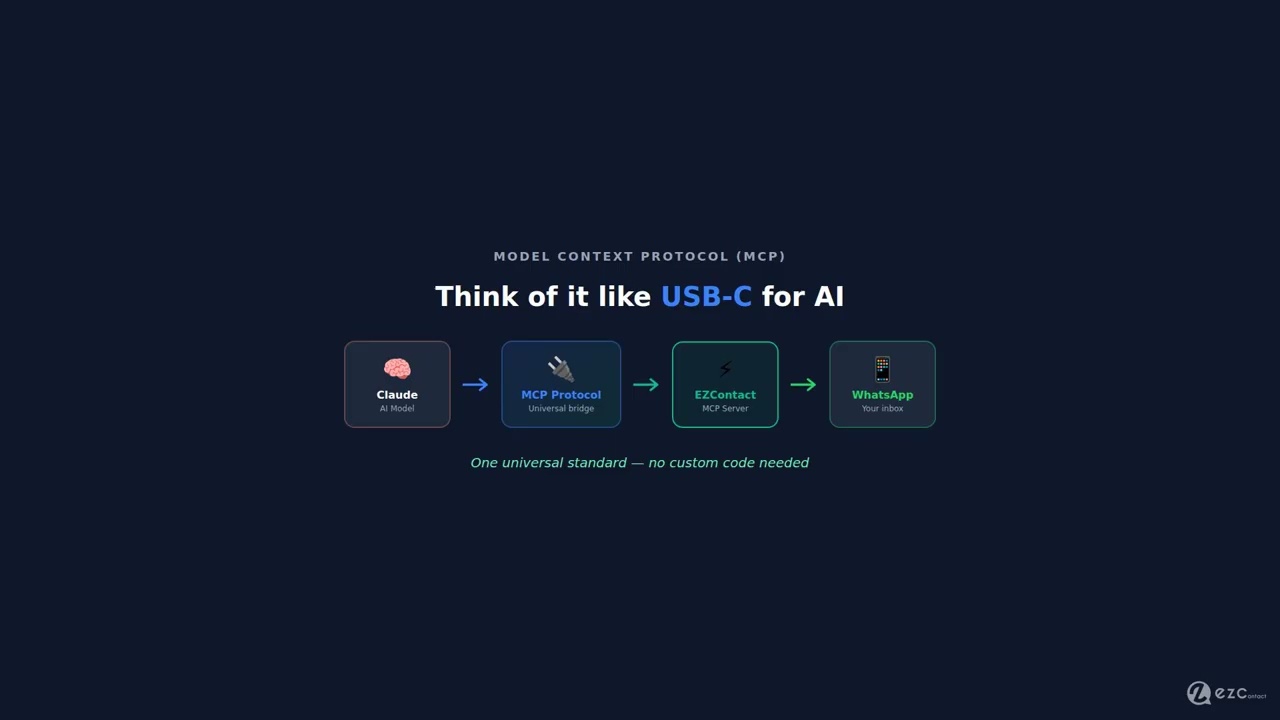
What Is the Model Context Protocol (MCP)?
MCP (Model Context Protocol) is an open standard created by Anthropic that lets AI models like Claude connect directly to external tools, APIs, and data sources—without custom integrations for each one.
Think of it like USB-C for AI: one universal protocol that connects Claude to your calendar, your CRM, your database, or your WhatsApp inbox.
Before MCP, connecting an AI model to an external tool required custom code for every integration. You had to write prompts, parse responses, handle errors, and maintain the glue layer yourself. MCP standardizes all of that into a clean client-server model.
How it works:
Claude Desktop (MCP Client)
        ↕ MCP Protocol
   MCP Server (e.g., EZContact)
        ↕ WhatsApp Business API
WhatsApp Conversations- You ask Claude a question or give it a task
- Claude sends a request to the MCP server via the protocol
- The MCP server translates that into a WhatsApp API call
- The result comes back to Claude in structured format
- Claude responds with context, insights, or action confirmations
The key insight: Claude can now take actions in the real world—sending messages, reading conversations, tagging contacts—just by receiving natural language instructions from you.
Why WhatsApp + Claude Is a Game-Changer for Businesses
Here’s what becomes possible when Claude has access to your WhatsApp inbox:
Before MCP
- You open WhatsApp, read 50 messages
- You manually categorize: leads, support, complaints
- You copy-paste context into ChatGPT to draft replies
- You switch back to WhatsApp, paste, adjust tone, send
- You update your CRM manually
After MCP (Claude + EZContact)
You: “Claude, check today’s WhatsApp messages and summarize the open leads”
Claude: “You have 8 open leads from today. 3 are asking about pricing (Acme Corp, TechStart, Flores & Asociados), 2 want a demo, and 3 are existing clients with support questions. Want me to draft responses for the pricing inquiries?”
That’s not science fiction. That’s what MCP enables right now.
EZContact’s MCP Server: WhatsApp for AI Agents
EZContact is the first WhatsApp Business platform to offer a native MCP server—making it the only way to give Claude (or any MCP-compatible AI agent) full, secure access to WhatsApp Business conversations.
What Claude can do through EZContact’s MCP server:
| Action | MCP Tool | Description |
|---|---|---|
| Read conversations | get_conversations | List recent chats with filters |
| Send messages | send_message | Send text, images, or documents |
| Search contacts | search_contacts | Find contacts by name, phone, or tag |
| Tag a contact | tag_contact | Apply CRM labels for segmentation |
| Get conversation history | get_messages | Full thread history for a contact |
| Handoff to human | assign_agent | Assign conversation to a team member |
| Send bulk messages | send_bulk | Message all contacts with a specific tag |
This means Claude doesn’t just talk about your WhatsApp—it can act on your WhatsApp.
💡 Before you continue: You’ll need an EZContact account to follow along. Create a free account →
Requirements
Before you start, make sure you have:
- Claude Desktop installed — claude.ai/download
- EZContact account on the Business plan or higher — platform.ezcontact.ai
- WhatsApp Business channel connected in EZContact
- Your EZContact API Key (Settings → API)
- Your Channel ID for the WhatsApp number you want Claude to access
Step-by-Step Setup
Step 1: Get Your EZContact API Credentials
Log in to platform.ezcontact.ai and navigate to:
Settings → API & Integrations → API Keys
Click Generate new API Key and copy it. Also note your Channel ID from the Channels section—you’ll need both.
⚠️ Store your API Key securely. Anyone with this key can send messages through your WhatsApp number.
Step 2: Configure Claude Desktop
Claude Desktop supports MCP via a JSON configuration file. Locate the config file at:
- macOS:
~/Library/Application Support/Claude/claude_desktop_config.json - Windows:
%APPDATA%\Claude\claude_desktop_config.json
Open the file (or create it if it doesn’t exist) and add the EZContact MCP server:
{
  "mcpServers": {
    "ezcontact-whatsapp": {
      "command": "npx",
      "args": ["-y", "@ezcontact/mcp-server"],
      "env": {
        "EZCONTACT_API_KEY": "your_api_key_here",
        "EZCONTACT_CHANNEL_ID": "your_channel_id_here",
        "EZCONTACT_BASE_URL": "https://api.ezcontact.ai"
      }
    }
  }
}
Replace your_api_key_here and your_channel_id_here with your actual credentials.
Step 3: Restart Claude Desktop
Close and reopen Claude Desktop. You should see a small plug icon (🔌) in the bottom-left of the chat interface—this indicates MCP servers are connected.
Click the icon to verify “ezcontact-whatsapp” appears in the list of available tools.
Step 4: Test the Connection
In Claude Desktop, type:
“List the 5 most recent conversations in my WhatsApp inbox”
Claude will call the EZContact MCP server and return a structured summary of your recent conversations with contact names, last message, and timestamp.
If it works—congratulations. You’ve just connected Claude to WhatsApp. 🎉
Real-World Use Cases
Use Case 1: Morning Inbox Briefing
Every morning, ask Claude:
“Give me a briefing of unread WhatsApp messages from the last 12 hours. Group them by: leads, support requests, and existing clients.”
Claude reads your inbox, categorizes messages using context, and presents a clean summary—so you start your day knowing exactly what needs attention.
Use Case 2: Draft Replies in Your Brand Voice
“Draft a reply to Gabriela Rodriguez. She’s asking for a demo next week. Be warm but concise. Confirm Thursday at 3pm works and include our meeting link.”
Claude drafts the message. You review and say “send it.” Claude sends it through EZContact to Gabriela’s WhatsApp.
Use Case 3: Lead Qualification at Scale
“Find all conversations from the last 7 days where someone asked about pricing but hasn’t been tagged as ‘qualified’ yet. Tag them as ‘needs-followup’.”
Claude runs through your conversation history, identifies untagged pricing inquiries, and bulk-tags them in your EZContact CRM—a task that would take 30+ minutes manually.
Use Case 4: Follow-up Sequences
“Send a follow-up message to everyone tagged ‘demo-scheduled’ reminding them about their demo tomorrow. Include the meeting link.”
Claude uses send_bulk through EZContact to message all relevant contacts with a personalized reminder—no list building, no export/import, just one natural language instruction.
Use Case 5: Competitive Intelligence
“Search for all conversations where customers mentioned our competitors in the last 30 days. What are the common objections?”
Claude finds relevant threads, extracts competitor mentions, and synthesizes the patterns—helping your sales team sharpen their positioning.
Security Considerations
Giving an AI model access to your business WhatsApp requires careful security practices:
API Key Scope: EZContact lets you create read-only or read-write API keys. For use cases that only need to read conversations, use a read-only key to limit blast radius.
Audit Logs: Every action Claude takes via MCP is logged in EZContact’s activity log (Settings → Audit Log). Review this periodically.
Rate Limits: EZContact’s MCP server respects WhatsApp’s rate limits automatically. Claude will receive an error if you’re sending messages too quickly.
Data Privacy: Conversation data passes through the MCP protocol in memory—it’s not stored by Anthropic. However, Claude may use conversation content in its context window to answer your questions.
MCP vs. Traditional Zapier/n8n Integrations
You might be wondering: “I already have n8n connected to EZContact—why do I need MCP?”
The difference is fundamental:
| Traditional Automation (Zapier/n8n) | MCP + Claude | |
|---|---|---|
| Trigger | Fixed events (webhook, schedule) | Natural language instructions |
| Logic | Pre-defined rules | Dynamic reasoning |
| Flexibility | Rigid flows | Adapt to new situations |
| Setup | Hours of configuration | Minutes with MCP |
| Best for | Repetitive, predictable tasks | Open-ended, complex decisions |
Traditional automation is perfect for: “When order is placed → send confirmation message.”
MCP + Claude is perfect for: “Look at today’s leads and decide who needs a follow-up, based on what they said and how long since they last heard from us.”
Both have their place. The most powerful setups use n8n for trigger-based automation and Claude MCP for intelligent, context-aware decisions.
What’s Next: AI Agents That Run Autonomously
The MCP integration we’ve described here is still human-in-the-loop—you give Claude instructions, Claude acts.
The next frontier is autonomous AI agents: Claude running on a schedule, proactively checking your inbox, making decisions, and acting without waiting for you to prompt it.
EZContact is building toward this future. Combined with tools like Claude’s computer use and agentic frameworks, the vision is an AI that:
- Greets new leads the moment they message
- Qualifies, nurtures, and schedules demos
- Escalates only the edge cases to a human
- Reports back with a morning briefing of what happened overnight
The MCP server is the foundation of that architecture. Start here.
Getting Started Today
Ready to connect Claude to your WhatsApp Business?
Start in 3 steps:
- Create your EZContact account — takes 2 minutes
- Connect your WhatsApp Business number — EZContact guides you through the official Meta onboarding
- Configure the MCP server in Claude Desktop using the steps above
Then start with a simple use case: the morning briefing.
The businesses that invest in AI infrastructure now will have a compounding advantage over those that wait. WhatsApp is already your customers’ preferred channel. Claude is already one of the most capable AI assistants available. MCP is the bridge that connects them — and EZContact is the only platform that combines MCP connectivity with AI + human handoff in a single inbox.
Have questions about the MCP integration? Reach out directly through platform.ezcontact.ai or email us at jorge.rodriguez@ezcontact.ai.
Related guides
- WhatsApp Business API Updates 2026: 5 Critical Changes & Deadlines — Portfolio Pacing, 100K limits, usernames, and what your platform needs to handle
- 360dialog Pricing 2026: Real Costs vs Twilio, WATI & EZContact — Exact monthly costs for the four most popular WhatsApp API providers
- Can Claude Connect to WhatsApp? The Complete Setup — Overview of what the Claude + WhatsApp connection unlocks
Frequently Asked Questions
What is the Model Context Protocol (MCP) for WhatsApp?
MCP (Model Context Protocol) is an open standard created by Anthropic that lets AI models like Claude connect directly to external tools and APIs. EZContact’s WhatsApp MCP server acts as the bridge, giving Claude the ability to read conversations, send messages, tag contacts, and trigger workflows in your WhatsApp Business account—all via natural language instructions.
Can Claude AI send WhatsApp messages automatically?
Yes. Through EZContact’s MCP server, Claude can send messages, reply to conversations, tag contacts, and even send bulk messages to segmented lists. You give Claude a natural language instruction like “Send a follow-up to all leads from this week,” and Claude executes it via EZContact’s WhatsApp Business API.
What’s the difference between Claude MCP and Zapier for WhatsApp automation?
Zapier is best for trigger-based, repetitive automations with fixed rules. Claude MCP is best for dynamic, context-aware decisions that require reasoning. For example, Zapier handles “When order is placed → send confirmation.” Claude MCP handles “Analyze today’s leads and decide who needs a follow-up based on their conversation history.” Most powerful setups use both.
Is it safe to give Claude AI access to my WhatsApp Business inbox?
EZContact provides security controls including read-only or read-write API key scopes, full audit logs of every action Claude takes, and rate limiting that respects WhatsApp’s policies. Conversation data passes through the MCP protocol in memory and is not stored by Anthropic.
What WhatsApp plan do I need to use EZContact’s MCP server with Claude?
You need an EZContact Business plan or higher, with a WhatsApp Business channel connected via Meta’s official API. Once your account is set up, follow the Claude Desktop MCP configuration steps in this guide—it only takes a few minutes.
Can other AI models besides Claude use the EZContact MCP server?
Yes. The MCP protocol is an open standard. Any AI client that supports MCP—including other LLM-based assistants and custom agents—can connect to EZContact’s WhatsApp MCP server. Claude Desktop is simply the easiest starting point.
Related articles
Aug 2026
EZContact vs Yalo: Best WhatsApp AI Platform for LATAM?
Compare EZContact vs Yalo for WhatsApp AI, conversational commerce, human handoff, implementation, and the right business fit in LATAM.
Aug 2026
EZContact vs Salesforce Service Cloud: WhatsApp Service Without Enterprise Complexity
Comparing Salesforce Service Cloud and EZContact for WhatsApp customer service? See the honest 2026 breakdown of AI, handoff, setup, pricing, and fit.
Aug 2026
WhatsApp Voice AI: Handle Calls, Voicemails & Customer Service with an AI Agent
WhatsApp Voice AI combines a 24/7 AI phone agent with WhatsApp follow-up, call summaries, appointment booking, and human handoff. See how the workflow works.
Put your WhatsApp to work with EZContact
An AI agent that knows your business, a unified inbox, and human handoff when needed. No complex flows — set it up with a single prompt.