
Can Claude Connect to WhatsApp? Complete Setup Guide (2026)
Yes, Claude can connect to WhatsApp through EZContact's MCP server. Follow the 2026 setup, see what Claude can read and send, and learn how human handoff works.
Yes — Claude can connect to WhatsApp through a WhatsApp Business API bridge and an MCP server. EZContact provides both, so Claude can read conversations, send replies, use live business data, and hand complex cases to a human from one platform.
The bridge is the Model Context Protocol (MCP) — an open standard created by Anthropic that lets Claude connect to external tools and APIs. EZContact provides a native MCP server for WhatsApp Business, which means Claude can manage WhatsApp conversations with full business context.
This guide covers the complete setup. For narrower questions, see exactly how Claude reads and sends WhatsApp messages or follow the step-by-step Claude–WhatsApp connection tutorial.
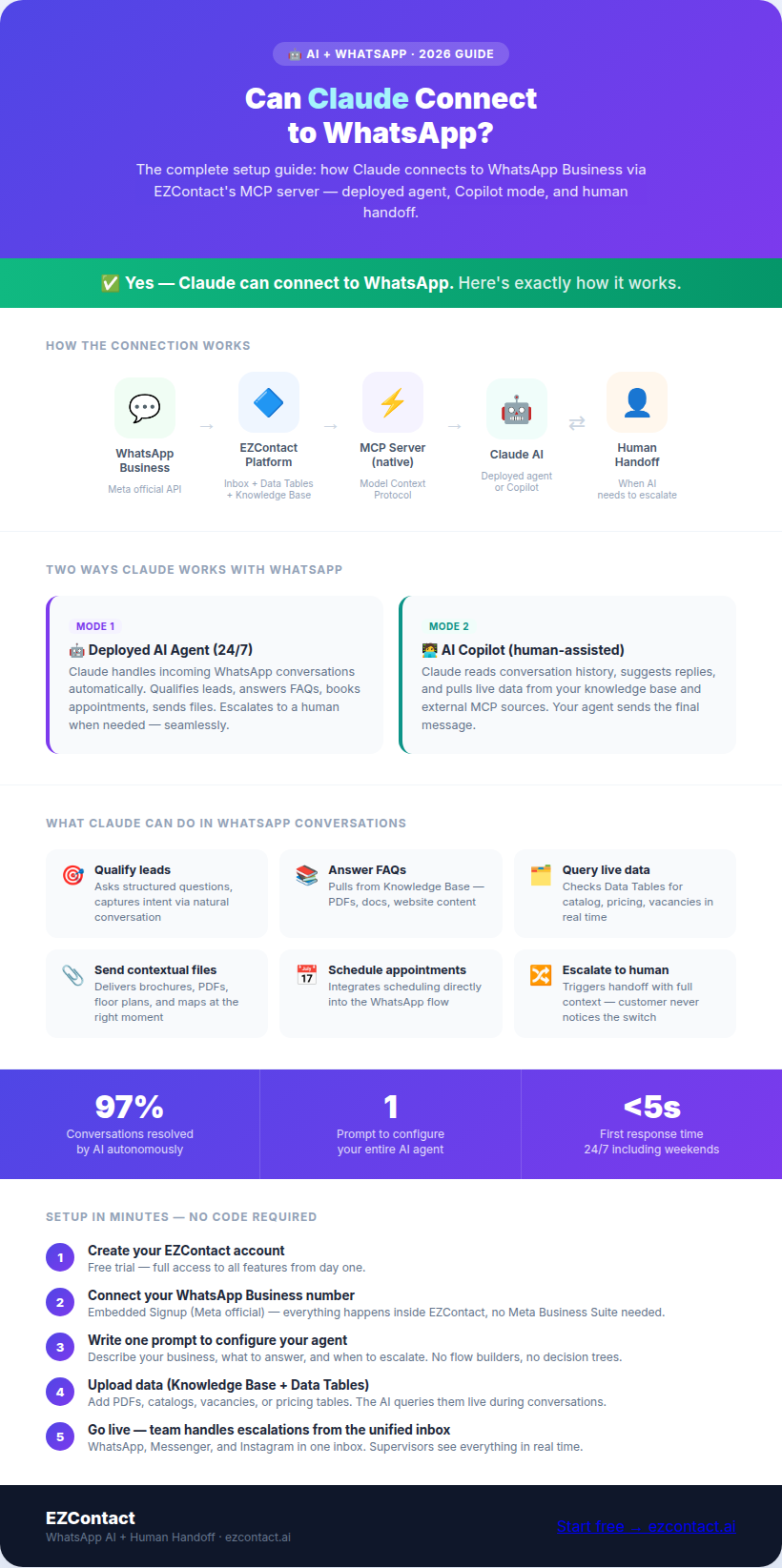
What does “Claude connecting to WhatsApp” actually mean?
There are two distinct ways Claude can work with WhatsApp through EZContact:
1. As a deployed AI agent (automated, 24/7) Claude handles incoming WhatsApp conversations automatically — qualifying leads, answering FAQs, booking appointments, sending files. When it needs to escalate, it hands off to a human with full conversation context. Your customers just see a fast, helpful WhatsApp conversation.
2. As a Copilot for your team (human-assisted) Your agents use Claude as a Copilot inside EZContact’s inbox. Claude reads the conversation history, suggests replies, pulls data from your knowledge base, and connects to external data sources via MCP. The human sends the final reply.
Both modes run through EZContact. Both are live today.
How the connection works: Claude + MCP + WhatsApp
The Model Context Protocol is the technical layer that makes this possible. Here’s the architecture:
Your WhatsApp Business number
        ↕ WhatsApp Business API (Meta)
     EZContact platform
        ↕ MCP Server (native)
         Claude AI
        ↕ Your business data
   (Knowledge Base, Data Tables, external MCP sources)
EZContact acts as the MCP server — a standardized interface that Claude (or any MCP-compatible AI agent) can call to:
- Read incoming messages and conversation history
- Send replies, images, documents, and audio
- Query your product catalog, vacancies, or price list from Data Tables
- Access your Knowledge Base (uploaded PDFs, docs, FAQs)
- Connect to external data sources via MCP (CRM, ERP, databases)
- Assign conversations to specific team members
- Add tags and notes to contacts
No custom code needed. EZContact exposes these as MCP tools that Claude calls natively.
Step-by-step: setting up Claude on WhatsApp via EZContact
Step 1 — Create your EZContact account
Go to ezcontact.ai/signup.html and create your account. The free trial gives you full access to set up and test the integration.
Step 2 — Connect your WhatsApp Business number
EZContact uses Meta’s official WhatsApp Business API with an Embedded Signup flow built directly into the onboarding. You don’t need to go to Meta Business Suite — the entire number connection process happens inside EZContact. If you don’t have a Meta Business Portfolio yet, you can create one during the same flow.
Step 3 — Configure your AI agent with a single prompt
In EZContact’s AI settings, write a prompt that describes your agent. No flow builder. No decision trees. Just tell the AI:
- What your business does
- What questions it should answer
- What it should do when it can’t help (escalate to a human)
- What tone and language to use
Example prompt for a recruiting agency:
“You are the AI assistant for [Agency Name], a staffing agency. When candidates message, collect their name, the position they’re interested in, and their availability. If they match an active vacancy from the Data Tables, send them the job description and schedule an interview. If not, let them know you’ll keep their profile on file and escalate to a recruiter if they have follow-up questions.”
That’s it. One prompt, fully configured.
Step 4 — Upload your data to Data Tables
EZContact’s Data Tables is a built-in structured data layer — think of it as a mini Airtable your AI agent can query in real time. Use it for:
- Product catalog (name, price, specs, availability)
- Active job vacancies
- Branch locations and hours
- Pricing tiers
- Any structured list that changes frequently
When a customer asks “do you have the Pro plan available?”, the AI checks Data Tables and responds with live data — no prompt editing required.
Step 5 — Add contextual files
Upload files to EZContact with instructions for when to send them: brochures, PDFs, maps, price lists, floor plans. The AI agent sends the right file at the right moment in the conversation — without needing a human to intervene.
Step 6 — Connect external data via MCP (optional)
For advanced setups, EZContact supports external MCP server connections. If you have a CRM, ERP, or internal database with its own MCP server, you can connect it to EZContact. The AI agent can then query your live business data in real time during WhatsApp conversations.
What Claude can actually do in WhatsApp conversations
Once configured, here’s what the AI agent handles autonomously:
| Task | How it works |
|---|---|
| Qualify leads | Asks structured questions, captures intent |
| Answer FAQs | Pulls from Knowledge Base (PDF, docs, website) |
| Share catalog / pricing | Queries Data Tables in real time |
| Send files | Delivers brochure, map, or floor plan contextually |
| Book appointments | Integrates with scheduling flow |
| Screen candidates | Gathers info, matches against vacancy list |
| Escalate to human | Triggers handoff with full conversation context |
| Follow up | Sends automated follow-up messages after set intervals |
The 97/3 split observed in production: 97% of conversations are resolved by the AI, 3% require human intervention.
The human handoff: when Claude steps aside
This is EZContact’s core differentiator — and why it’s different from a standalone Claude integration or a simple chatbot.
Handoff is seamless and bidirectional:
- The AI agent detects when a conversation needs a human (unresolved issue, frustrated tone, explicit request, escalation keyword)
- The human agent gets a notification and opens the conversation with full context — every message, every data point collected
- The human takes over the conversation; the customer sees no disruption (still WhatsApp, same thread)
- When resolved, the human can return the conversation to the AI for follow-up
Supervisors get a real-time view of all ongoing conversations — AI-handled and human-handled — from the same inbox.
This is what “AI + human working together” means in practice. Not a bot that eventually fails and frustrates customers. A system where AI handles volume and humans close the important ones.
EZContact vs DIY Claude + MCP
You can build a Claude + WhatsApp integration yourself. Here’s an honest comparison:
| DIY Claude + MCP | EZContact | |
|---|---|---|
| WhatsApp API connection | You manage Meta BSP | Built-in, compliant |
| MCP server | You build and host it | Native, hosted |
| Multi-agent inbox | You build it | Included |
| Human handoff | You build it | Included |
| Data Tables | You build it | Included |
| Contextual file sharing | You build it | Included |
| Prompt configuration | Manual | One-prompt setup |
| Maintenance | Yours | EZContact’s |
| Time to first conversation | Days/weeks | Minutes |
If you’re a developer who wants maximum control, the DIY route works — EZContact even provides a full walkthrough for connecting Claude Desktop to its WhatsApp MCP server if you prefer that path. But for most businesses, EZContact is the faster, more reliable path to the same outcome.
Frequently asked questions
Can I use Claude specifically, or does EZContact use a different AI? EZContact’s AI layer is powered by large language models. The Copilot mode supports MCP, which Claude Desktop can connect to directly. The deployed agent runs on EZContact’s AI backend. If you want to use Claude Desktop as a Copilot connected to your WhatsApp inbox via MCP, that’s a supported path.
Does my customer know they’re talking to an AI? That’s up to you. EZContact lets you configure whether to disclose AI in the conversation. Many businesses configure the agent to respond as a named assistant without explicitly calling it an AI.
What happens if the AI gets something wrong? That’s exactly what human handoff is for. If the AI gives an incorrect answer or a customer escalates, a human takes over immediately. The AI doesn’t permanently damage a relationship — it routes to the appropriate resource.
Is this compliant with WhatsApp’s terms of service? Yes. EZContact is an official WhatsApp Business API provider. All messages sent through the platform comply with Meta’s policies.
What languages does Claude handle on WhatsApp? EZContact’s AI agent handles any language the underlying model supports — which for major LLMs includes Spanish, English, Portuguese, French, German, and dozens more. You can configure your agent to respond in the customer’s language automatically.
How long does setup take? Most businesses have their first AI-handled WhatsApp conversation within the same day. Number connection takes a few minutes. Agent configuration is a single prompt.
More guides in this series
Exploring which AI works best on WhatsApp for your business? Check out the other guides in this cluster:
- Claude WhatsApp MCP: How It Works & Complete Setup
- Can Claude Read & Send WhatsApp Messages?
- How to Connect Claude to WhatsApp: Step by Step
- Can ChatGPT Connect to WhatsApp?
- Can Google Gemini Connect to WhatsApp?
- Can Meta AI Connect to WhatsApp?
- Can Microsoft Copilot Connect to WhatsApp?
The bottom line
Claude can connect to WhatsApp — and through EZContact, it’s the most complete implementation available in 2026. You get a deployed AI agent that qualifies leads, answers questions, sends files, and escalates to humans — all within a WhatsApp thread your customer never has to leave.
Ready to connect Claude to your WhatsApp?
Start your free trial at ezcontact.ai — or message us on WhatsApp to see a live demo with your specific use case.
Related articles
Aug 2026
EZContact vs Yalo: Best WhatsApp AI Platform for LATAM?
Compare EZContact vs Yalo for WhatsApp AI, conversational commerce, human handoff, implementation, and the right business fit in LATAM.
Aug 2026
EZContact vs Salesforce Service Cloud: WhatsApp Service Without Enterprise Complexity
Comparing Salesforce Service Cloud and EZContact for WhatsApp customer service? See the honest 2026 breakdown of AI, handoff, setup, pricing, and fit.
Aug 2026
WhatsApp Voice AI: Handle Calls, Voicemails & Customer Service with an AI Agent
WhatsApp Voice AI combines a 24/7 AI phone agent with WhatsApp follow-up, call summaries, appointment booking, and human handoff. See how the workflow works.
Put your WhatsApp to work with EZContact
An AI agent that knows your business, a unified inbox, and human handoff when needed. No complex flows — set it up with a single prompt.