
Claude WhatsApp MCP: What It Is, How It Works & Complete Setup Guide (2026)
Claude WhatsApp MCP uses Anthropic's Model Context Protocol to give Claude direct access to your WhatsApp Business conversations. Here's how the protocol works, what EZContact's MCP server exposes, and how to set it up step by step.
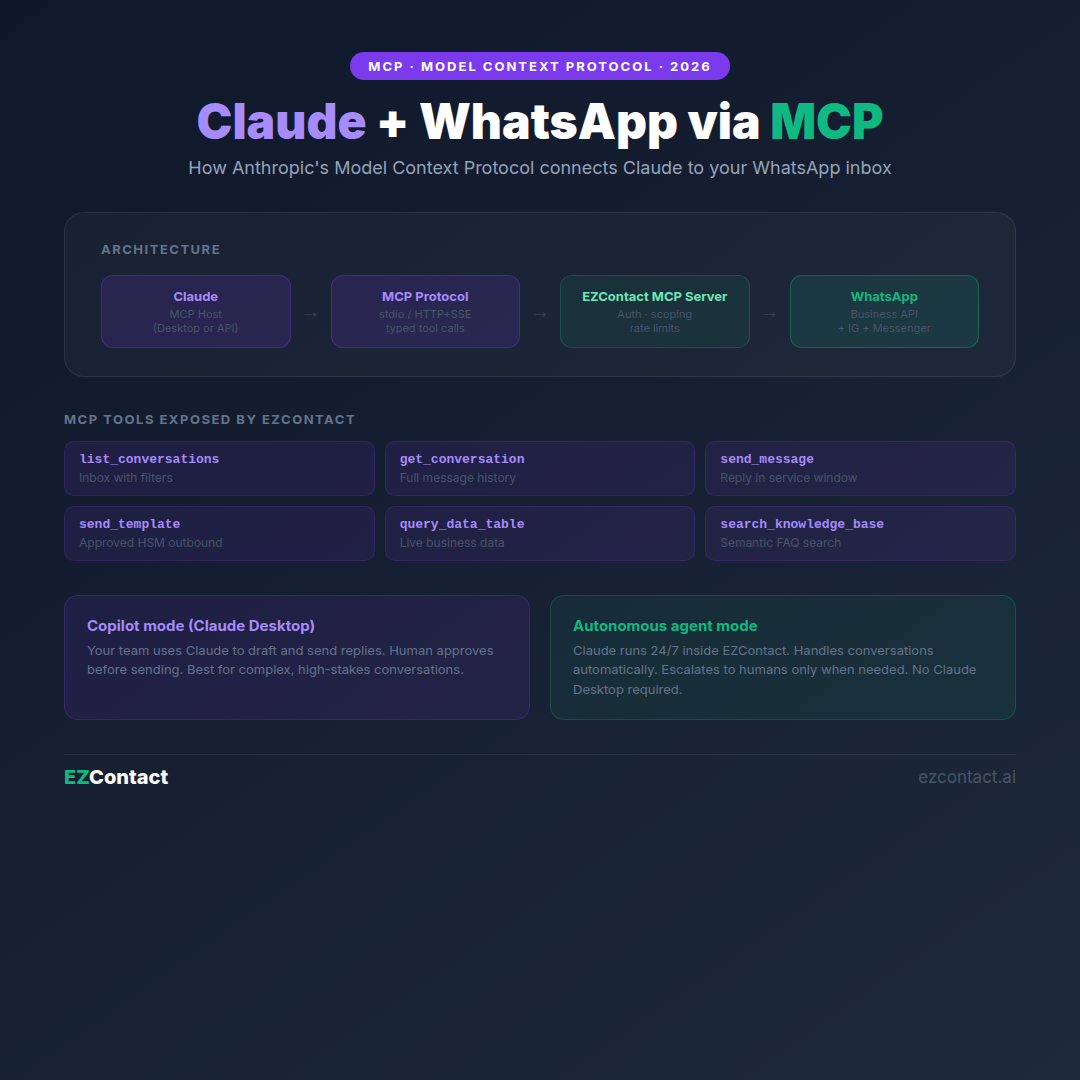
Claude WhatsApp MCP is the integration between Anthropic’s Claude and WhatsApp Business using the Model Context Protocol — an open standard that gives Claude structured, real-time access to external tools and data sources. When Claude connects to WhatsApp via MCP, it can read conversations, send replies, query your business data, and trigger actions inside your WhatsApp inbox without leaving its reasoning loop.
This article covers what MCP is, why it matters for WhatsApp, what EZContact’s MCP server exposes, and how to set up the full integration.
What is MCP (Model Context Protocol)?
The Model Context Protocol is an open standard created by Anthropic — the company behind Claude — that defines how AI models connect to external tools, APIs, and data sources in a structured, secure way.
Before MCP, integrating an AI model with an external system (like your WhatsApp inbox) required custom glue code, prompt stuffing with raw data, and ad-hoc API calls that the model couldn’t reliably orchestrate. MCP standardizes the interface: the model sends typed requests, the MCP server responds with structured data, and the model can chain multiple tool calls in a single reasoning step.
In plain terms: MCP lets Claude “reach out” to external systems — read data, execute actions, get results — and use that information as part of its response, without you manually injecting data into the prompt.
MCP components
| Component | Role |
|---|---|
| MCP Host | The Claude environment that runs the model (Claude Desktop, your application) |
| MCP Client | Manages the connection between Claude and MCP servers |
| MCP Server | Exposes tools, resources, and prompts from a specific system (e.g., WhatsApp via EZContact) |
| Transport | How the MCP client and server communicate (stdio for local, HTTP/SSE for remote) |
EZContact provides a ready-made MCP Server for WhatsApp Business — so you don’t build the server from scratch.
Why MCP matters for WhatsApp
Without MCP, connecting Claude to WhatsApp looks like this: you manually pull conversation history, paste it into a prompt, ask Claude to draft a reply, copy the reply back into your WhatsApp interface, and send it. It’s useful, but slow and fragmented.
With MCP, the flow becomes:
- Claude receives a task (“help me respond to the last 5 unanswered messages”)
- Claude calls the
list_conversationstool on the MCP server → gets the live inbox state - Claude reads each conversation context
- Claude drafts replies using your knowledge base and business data
- Claude sends the replies via
send_messagecalls on the MCP server - All of this happens in one reasoning session — no manual data transfer
The same applies to autonomous agent mode: Claude runs a loop, processes incoming conversations, queries your product data or CRM, and responds — all without a human operator in the loop unless an escalation trigger fires.
What EZContact’s MCP server exposes
EZContact’s WhatsApp MCP server provides the following tools to Claude:
Conversation tools
list_conversations— Returns open conversations from your WhatsApp inbox, filterable by status, label, assignee, or time rangeget_conversation— Returns full message history for a specific conversation, including contact metadatasearch_conversations— Full-text search across conversation history by contact name, phone, or message content
Messaging tools
send_message— Sends a free-text reply within an open service window conversationsend_template— Sends an approved WhatsApp template message (HSM) for outbound or post-window communicationsend_file— Sends a file (PDF, image, document) to a contact — uses files pre-loaded in EZContact
Contact and data tools
get_contact— Returns contact profile: name, phone, tags, conversation history, custom fieldsupdate_contact— Updates contact tags, notes, or custom CRM fieldsquery_data_table— Queries a live Data Table (e.g., product catalog, job vacancies, branch info, appointment availability)
Workflow tools
assign_conversation— Routes a conversation to a specific team memberlabel_conversation— Adds or removes labels (used for pipeline/Kanban stage tracking)close_conversation— Marks a conversation as resolved
Knowledge tools
search_knowledge_base— Semantic search over your EZContact knowledge base (FAQs, product docs, policies)
Architecture: Claude + MCP + EZContact + WhatsApp
┌────────────────────────────────────────────────┐
│              Claude (MCP Host)                 │
│  - Reads conversation context                  │
│  - Queries knowledge base + data tables        │
│  - Sends replies                               │
└──────────────────┬─────────────────────────────┘
                   │ MCP Protocol (stdio / HTTP+SSE)
┌──────────────────▼─────────────────────────────┐
│         EZContact MCP Server                   │
│  - Auth: API key scoped to workspace           │
│  - Tools: list, read, send, query, assign      │
│  - Access: only conversations in your account  │
└──────────────────┬─────────────────────────────┘
                   │ WhatsApp Business API (Meta)
┌──────────────────▼─────────────────────────────┐
│         WhatsApp Business Number               │
│  - Your customers' conversations               │
│  - Instagram DMs + Facebook Messenger          │
└────────────────────────────────────────────────┘
Claude never talks directly to Meta’s API. EZContact’s MCP server is the controlled bridge — it enforces access scoping, rate limits, and message compliance.
Two modes of operation
Mode 1: Claude Desktop as Copilot
Your team member opens Claude Desktop (with the EZContact MCP server configured) and uses Claude to assist with inbox management:
Human: "Show me all unanswered conversations from the last 2 hours and
        draft a reply for each based on our FAQ"

Claude: [calls list_conversations → filters by status=open, time=2h]
        Found 7 conversations. Here are draft replies:

        Contact: María García (+52 55 1234 5678)
        Message: "¿Cuánto cuesta el plan Pro?"
        Draft: "Hola María, el plan Pro está en $1,499 MXN/mes e incluye..."
        [based on query_data_table → pricing table]

        [... 6 more drafts ...]

        Ready to send all 7? Or review individually?
The agent suggests — the human approves — Claude sends via send_message calls.
Mode 2: Deployed autonomous agent
Claude runs as a 24/7 autonomous agent inside EZContact. It handles incoming conversations without human input, escalating only when:
- The conversation falls outside configured scope
- The customer explicitly asks for a human
- A trigger keyword or frustrated tone is detected
In this mode, the MCP loop runs server-side within EZContact — Claude doesn’t need Claude Desktop running.
Step-by-step setup
Prerequisites
- An EZContact account with an active WhatsApp Business number (sign up)
- Claude Desktop installed (for Copilot mode) — or EZContact’s autonomous agent mode (no Claude Desktop needed)
- Your EZContact API key (Settings → Integrations → API)
Option A: Claude Desktop Copilot mode
1. Get your EZContact API key
In EZContact: Settings → Integrations → API → Generate key. Copy it.
2. Install the EZContact MCP server
npm install -g @ezcontact/mcp-server3. Configure Claude Desktop
Edit ~/Library/Application Support/Claude/claude_desktop_config.json (macOS) or %APPDATA%\Claude\claude_desktop_config.json (Windows):
{
  "mcpServers": {
    "ezcontact-whatsapp": {
      "command": "ezcontact-mcp",
      "args": [],
      "env": {
        "EZCONTACT_API_KEY": "your-api-key-here",
        "EZCONTACT_WORKSPACE_ID": "your-workspace-id"
      }
    }
  }
}
4. Restart Claude Desktop
After restarting, you’ll see “ezcontact-whatsapp” listed in Claude’s available tools (the hammer icon in the bottom toolbar).
5. Test the connection
In Claude Desktop, type: “List the last 5 open conversations in my WhatsApp inbox.”
Claude will call list_conversations and return real data from your EZContact account.
Option B: Autonomous agent (no Claude Desktop)
In EZContact, navigate to AI Agent → Configuration. Write your agent prompt describing your business, what the agent should handle, and escalation rules. EZContact deploys Claude as a persistent agent using its internal MCP server — no local setup needed.
This is the production-ready path for 24/7 automated WhatsApp handling.
What Claude can do via MCP on WhatsApp
Once connected, Claude can handle the full range of WhatsApp business workflows:
Customer service:
- Answer FAQs from your knowledge base in real time
- Check order status, appointment availability, or product info from Data Tables
- Handle complaints by gathering context and escalating to the right team member
Sales and lead qualification:
- Ask qualification questions and score leads based on responses
- Send pricing, case studies, or product catalogs contextually
- Route qualified leads to the right sales rep
Recruiting (high-volume use case):
- Screen candidates against job requirements from Data Tables
- Schedule interviews based on live calendar availability
- Send offer letters or rejection messages after human review
Appointment booking:
- Check real-time availability from your scheduling data
- Confirm, reschedule, or cancel appointments
- Send reminders with location maps or preparation instructions
Limitations to know
Claude can’t bypass WhatsApp’s messaging windows. Outside the 24-hour service window, only approved template messages (HSM) can be sent. send_template handles this, but templates require Meta approval before use.
Claude can’t access conversations outside your workspace. The MCP server enforces account-level scoping. Claude can only read and write to conversations in the EZContact workspace tied to your API key.
MCP tool calls have latency. Each tool call adds a round-trip. For real-time customer interactions, autonomous agent mode (server-side) is faster than Claude Desktop Copilot mode (local).
Claude Desktop mode is for operators, not customers. Customers always see the WhatsApp thread — they never interact with Claude Desktop directly.
Frequently asked questions
What is Claude WhatsApp MCP exactly? It’s the use of Anthropic’s Model Context Protocol to give Claude structured access to WhatsApp Business conversations via EZContact’s MCP server. Claude can list, read, and reply to WhatsApp messages as part of its native reasoning, without manual data transfer.
Do I need a developer to set this up? For Claude Desktop Copilot mode: basic technical comfort (editing a JSON config file, running an npm command). For autonomous agent mode via EZContact: no developer needed — configure via the UI with a text prompt.
Is this different from the existing Claude Connect to WhatsApp article? The Claude Connect guide covers whether Claude can connect and the high-level architecture. This article goes deeper on the MCP protocol specifically — what tools the server exposes, how the protocol works, and Claude Desktop setup details.
Can I use other Claude clients besides Claude Desktop? Yes. Any MCP-compatible client can connect to EZContact’s MCP server. This includes custom applications built with Anthropic’s SDK, multi-agent frameworks like AutoGen or LangGraph, and other tools that support the MCP standard.
Does this work with Claude’s extended thinking mode? Yes. Claude can use extended thinking while making MCP tool calls, which improves reasoning quality for complex multi-step tasks (e.g., triaging and responding to 30 conversations in priority order).
Is my customer data secure? EZContact’s MCP server enforces workspace-level scoping — Claude can only access data from your own EZContact account. All communication uses HTTPS/TLS. API keys are scoped and revocable.
More guides in this series
- Can Claude Connect to WhatsApp? Complete Setup Guide
- Can ChatGPT Connect to WhatsApp? Complete Guide
- Can Google Gemini Connect to WhatsApp?
- Can Meta AI Connect to WhatsApp?
- Can Microsoft Copilot Connect to WhatsApp?
- Can DeepSeek Connect to WhatsApp?
- EZContact MCP Server: Complete Guide for AI Agents
Related articles
Aug 2026
EZContact vs Yalo: Best WhatsApp AI Platform for LATAM?
Compare EZContact vs Yalo for WhatsApp AI, conversational commerce, human handoff, implementation, and the right business fit in LATAM.
Aug 2026
EZContact vs Salesforce Service Cloud: WhatsApp Service Without Enterprise Complexity
Comparing Salesforce Service Cloud and EZContact for WhatsApp customer service? See the honest 2026 breakdown of AI, handoff, setup, pricing, and fit.
Aug 2026
WhatsApp Voice AI: Handle Calls, Voicemails & Customer Service with an AI Agent
WhatsApp Voice AI combines a 24/7 AI phone agent with WhatsApp follow-up, call summaries, appointment booking, and human handoff. See how the workflow works.
Put your WhatsApp to work with EZContact
An AI agent that knows your business, a unified inbox, and human handoff when needed. No complex flows — set it up with a single prompt.