
How to Connect Claude to WhatsApp: Step-by-Step Guide (2026)
Step-by-step guide to connecting Claude AI to WhatsApp Business via EZContact's MCP server. Covers prerequisites, account setup, prompt configuration, data setup, and going live.
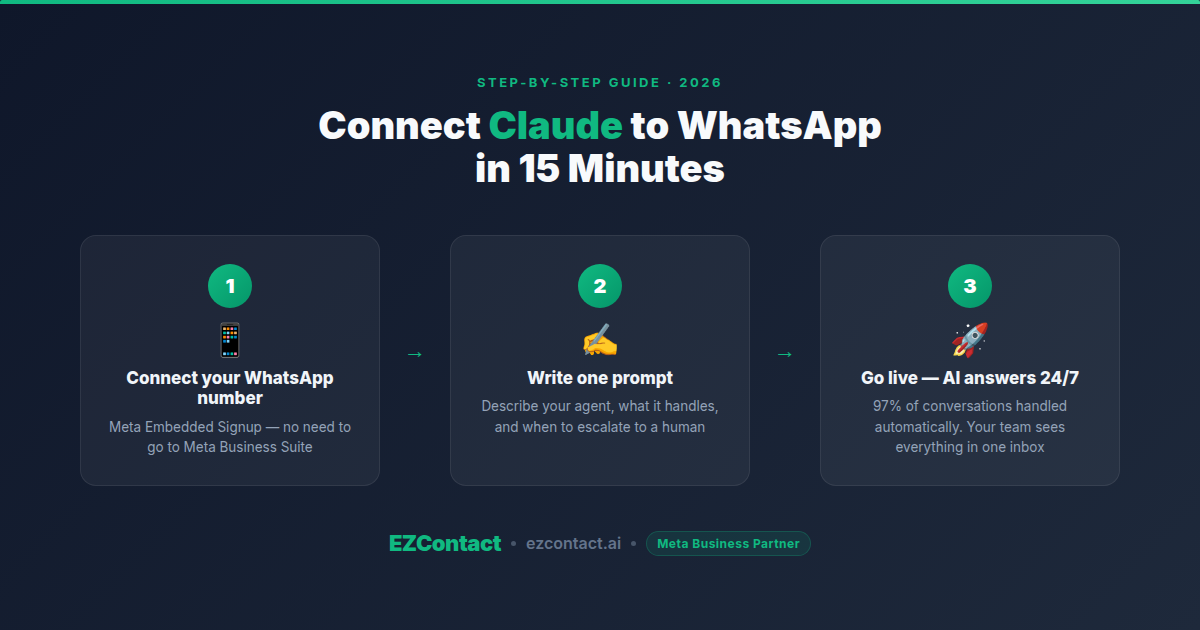
You can connect Claude to WhatsApp in under 15 minutes. The path is: EZContact account → WhatsApp number connection → one-prompt AI agent configuration → live.
This guide walks you through every step with the exact actions, what to expect at each stage, and what to do if something doesn’t go as planned.
Before you start: what you need
Go through this checklist before opening EZContact. It’ll save you from getting stuck mid-setup.
Required:
- ✅ A phone number for WhatsApp Business API — this can be a mobile or landline number. It must not already be registered in the regular WhatsApp or WhatsApp Business app. If it is, you’ll need to delete it from that app first and wait for the registration to clear (usually a few minutes).
- ✅ A Meta Business account — you’ll need one to connect WhatsApp Business API. If you don’t have one, EZContact’s onboarding walks you through creating it. It takes about 3 minutes.
- ✅ Your business name and a short description of what your business does — you’ll use these to write your AI agent prompt in Step 4.
Useful to have (but not required to start):
- 📄 Any documents, FAQs, or pricing sheets you want the AI agent to reference — you’ll upload these to the Knowledge Base
- 📋 A structured list if your business has dynamic data (job vacancies, product catalog, branch locations) — you’ll enter this into Data Tables
That’s it. You don’t need API keys, webhook URLs, or any code.
Step 1 — Create your EZContact account
Go to ezcontact.ai/signup.html and sign up.
The trial gives you full access to all features — WhatsApp connection, AI agent, Knowledge Base, Data Tables, and the unified inbox. No credit card required to start.
What happens after you sign up: You’ll land on the EZContact dashboard. The onboarding checklist shows you the next required steps. The first one is connecting your WhatsApp number.
Step 2 — Connect your WhatsApp Business number
In EZContact’s onboarding, click “Connect WhatsApp”.
This opens Meta’s Embedded Signup flow — it’s the official Meta process for registering a WhatsApp Business API number, and it runs entirely inside EZContact. You won’t need to navigate to Meta Business Suite in a separate tab.
What the flow asks you:
- Log in with your Meta account — this is your personal Facebook account (the one tied to your business, or the one you’ll use to manage it). If you don’t have a Meta Business Portfolio linked to it, Meta guides you through creating one here.
- Select or create your Business Portfolio — if you already have a Meta Business account, you’ll see it listed. Select it.
- Add your WhatsApp number — enter the phone number you want to use. Meta sends a verification code (SMS or voice call).
- Enter the verification code — once confirmed, your number is registered.
After this step: your WhatsApp Business number appears as active in EZContact’s channel settings. Messages sent to that number now arrive in EZContact’s inbox.
If your number was previously in WhatsApp or WhatsApp Business App: you’ll need to unlink it first. Open WhatsApp → Settings → Account → Delete Account. After deletion, the number becomes available for API registration. Meta’s systems typically clear within a few minutes, but can take up to 24 hours in some cases.
Step 3 — Set up your AI agent with a single prompt
Go to Settings → AI Agent in EZContact’s sidebar.
This is where you configure what Claude does when a customer messages your WhatsApp number. The entire configuration is a single text prompt — no flow builders, no decision trees, no node editors.
What to write in your prompt:
The prompt should answer four questions:
- Who is this agent? (Name, business, role)
- What can it help with?
- What should it do when it can’t help? (Escalate to a human)
- What tone and language should it use?
Example prompt for a dental clinic:
You are Sofia, the virtual assistant for Sonrisas Clinic in Monterrey.

You help patients with:
- Scheduling appointments (ask for preferred day/time, type of appointment, and patient name)
- General questions about our services (cleanings, orthodontics, implants, whitening)
- Pricing (see the Data Tables for current rates)
- Location and hours (Calle Hidalgo 204, Mon–Sat 9am–7pm)

When a patient asks about pain or a dental emergency, immediately say: "For emergencies, please call us directly at +52 81 XXXX XXXX or reply 'URGENTE' and we'll connect you with our team right away."

Always respond in the same language the patient uses. Keep responses short — 2–3 sentences max unless they ask for more detail. Never promise specific appointment times without confirmation.
Example prompt for a recruiting agency:
You are Max, the candidate coordinator for Talento Rápido, a staffing agency focused on logistics and operations roles.

When candidates contact you:
1. Ask for their name and which position they're interested in
2. Check the Data Tables for open vacancies matching their interest
3. If there's a match: share the key requirements and ask 3 qualifying questions (years of experience, availability, location)
4. If they qualify: schedule an interview and send the location map (uploaded in Files)
5. If there's no match: tell them you'll notify them when a relevant vacancy opens and collect their contact info

Escalate to a human recruiter if a candidate gets frustrated, asks to speak to a person, or has a complex situation that doesn't fit a standard vacancy.

Always respond in Spanish.
You can edit the prompt anytime — changes take effect immediately for new conversations.
Step 4 — Add your business data
Claude’s answers are only as good as the information you give it. There are two places to add data in EZContact:
Knowledge Base (for documents and FAQs)
Go to Knowledge Base in the sidebar. Upload:
- PDF files (service menus, pricing guides, company decks)
- Word documents (SOPs, scripts, FAQ documents)
- Plain text (you can paste content directly)
EZContact parses the content and makes it searchable for the AI agent. When a customer asks a question that’s covered in a document, Claude pulls the relevant section and answers from it.
What to upload first: your most-asked questions and your pricing or service list. These are the queries Claude will face most often.
Data Tables (for structured, frequently changing data)
Go to Data in the sidebar. Create a table for any information that changes regularly and that Claude needs to give accurate answers:
| Use case | Table structure |
|---|---|
| Job vacancies | Position, location, salary range, status (open/closed), requirements |
| Product catalog | Product name, price, availability, SKU |
| Branch locations | Branch name, address, hours, phone |
| Appointment slots | Date, time, available/booked |
When the data changes (a vacancy fills, a price updates), you update the table — Claude’s answers update automatically without any prompt editing.
Contextual files (for documents to send during conversations)
Go to Files in the sidebar. Upload files you want the AI to send at the right moment:
- Location maps (PDF or image)
- Product brochures
- Instructions documents
- Price sheets
In your prompt, tell Claude when to send each file: “After scheduling an interview, send the location map.” Claude handles the rest.
Step 5 — Test before going live
Before you let real customers reach the AI, test it yourself.
How to test:
- From a personal phone (different from your registered business number), send a message to your WhatsApp Business number
- The message will arrive in EZContact’s inbox and trigger the AI agent
- Have a short conversation — ask the questions your customers typically ask
- Check: Does the agent answer correctly? Does it use the right tone? Does it escalate when it should?
Common things to refine at this stage:
- The agent’s tone is too formal or too casual → adjust in the prompt
- The agent gives wrong pricing → check your Data Tables or Knowledge Base document
- The agent doesn’t know when to escalate → add specific escalation conditions to your prompt
- The agent’s responses are too long → add “Keep responses to 2–3 sentences” to your prompt
Testing takes 5–10 minutes and saves you from early friction with real customers.
Step 6 — Go live and monitor
Once you’re satisfied with the test results, you’re live. Incoming messages to your WhatsApp Business number are handled by the AI agent automatically.
What to monitor in the first 48 hours:
Open EZContact’s inbox and review conversations as they come in. Pay attention to:
- Escalations — conversations the AI flagged for human review. These show you what’s outside the agent’s scope.
- Incorrect answers — if Claude gets something wrong, check whether the right info is in the Knowledge Base or Data Tables. If it’s not, add it.
- Customer confusion — if customers frequently reply “what?” or ask the same follow-up question, the agent’s response may need simplifying.
Most teams do a focused 30-minute review at the end of day 1 and day 2. By day 3, the patterns are clear and you can adjust the prompt or data accordingly.
Human handoff: any conversation can be taken over by a human agent at any time from the EZContact inbox. The customer stays in WhatsApp — there’s no disruption from their side.
Common mistakes and how to avoid them
Prompt too long and complex: a prompt with 20 rules becomes harder for Claude to follow consistently. Start with 5–8 clear instructions and add more only if specific gaps appear.
No escalation instruction: if you don’t tell Claude when to hand off to a human, it tries to handle everything — including things it shouldn’t. Always include at least one escalation condition.
Missing data in tables: Claude will say “I don’t have that information right now” when something isn’t in the Knowledge Base or Data Tables. If you’re seeing that response for common questions, that’s your signal to add the missing content.
Testing with the same number used for the business account: use a separate phone to test. The registered WhatsApp Business number won’t receive incoming messages in the same way a customer does.
Uploading outdated documents: if your Knowledge Base has an old pricing PDF from 6 months ago, Claude will answer with old prices. Keep documents current — or use Data Tables for anything that changes often.
What to expect: first week results
Teams that set up EZContact with Claude consistently report:
- Response time drops from hours to under 30 seconds — the AI replies the moment a message arrives, including outside business hours
- 97% of standard conversations handled automatically — the 3% that go to humans are the exceptions, not the rule
- Fewer interruptions for the team — agents spend time on complex situations and closing, not answering the same FAQ for the hundredth time
The recruiting agency example: before EZContact, 37 recruiters were managing WhatsApp conversations manually. After setup, 3 recruiters handle the same volume — Claude screens candidates, schedules interviews, and sends location files. The humans step in for final conversations with qualified candidates.
Related guides in this series
- Can Claude Connect to WhatsApp? Yes — Complete Setup (2026)
- Claude WhatsApp MCP: What It Is and How to Set It Up
- Can Claude Read & Send WhatsApp Messages? What’s Actually Possible
- Can Meta AI Connect to WhatsApp? Complete Integration Guide (2026)
- 360dialog Pricing 2026: Real Monthly Costs, API Fees & What You Actually Pay
Ready to connect Claude to your WhatsApp?
EZContact is a Meta Business Partner. Claude integration is live on all plans.
👉 Start your free trial at ezcontact.ai
FAQ
Can I connect Claude to an existing WhatsApp Business number? Yes, as long as the number is not currently registered in the WhatsApp or WhatsApp Business app. If it is, you’ll need to delete the account from the app first, then register it through EZContact.
Do I need a Meta Business Portfolio to connect? Yes, but you can create one during EZContact’s onboarding if you don’t have one. The process is guided and takes about 3 minutes.
Can I use a landline number for WhatsApp Business API? Yes. WhatsApp Business API supports landlines — the verification code is delivered via voice call instead of SMS.
How long does setup take? The full setup — account, number connection, prompt, and initial data — takes under 15 minutes for most businesses. If you need to gather documents for the Knowledge Base, that adds time.
What if the AI gives a wrong answer? Check whether the correct information is in the Knowledge Base or Data Tables. If it’s not there, Claude can’t answer accurately — add the missing content and the issue resolves immediately for future conversations.
Can I change the prompt after going live? Yes. Prompt changes take effect immediately for new conversations. Ongoing conversations continue with the previous behavior until the customer’s session ends.
How does a human take over a conversation? From EZContact’s inbox, any agent can click into a conversation and take over. Claude stops responding, and the human handles the conversation. You can return it to AI mode afterward if needed.
Is there a limit on how many conversations the AI can handle? The AI agent scales with your WhatsApp Business API tier. For most businesses, limits are set by Meta’s messaging volume policies. EZContact has no separate cap on AI-handled conversations.
What does WhatsApp Business API access cost? WhatsApp Business API pricing has two layers: the BSP platform fee and Meta’s per-message fees. For a full cost breakdown using 360dialog as a reference BSP — including plan prices, real monthly totals, and what’s not included — see: 360dialog Pricing 2026: Real Monthly Costs, API Fees & What You Actually Pay.
Related articles
Aug 2026
EZContact vs Yalo: Best WhatsApp AI Platform for LATAM?
Compare EZContact vs Yalo for WhatsApp AI, conversational commerce, human handoff, implementation, and the right business fit in LATAM.
Aug 2026
EZContact vs Salesforce Service Cloud: WhatsApp Service Without Enterprise Complexity
Comparing Salesforce Service Cloud and EZContact for WhatsApp customer service? See the honest 2026 breakdown of AI, handoff, setup, pricing, and fit.
Aug 2026
WhatsApp Voice AI: Handle Calls, Voicemails & Customer Service with an AI Agent
WhatsApp Voice AI combines a 24/7 AI phone agent with WhatsApp follow-up, call summaries, appointment booking, and human handoff. See how the workflow works.
Put your WhatsApp to work with EZContact
An AI agent that knows your business, a unified inbox, and human handoff when needed. No complex flows — set it up with a single prompt.